Once you have successfully signed in to Hub Central using Single Sign On (SSO) for the first time, signing in to Hub Central will be done using your Microsoft Office 365 account and occasionally the Microsoft Authenticator app.
Step 1
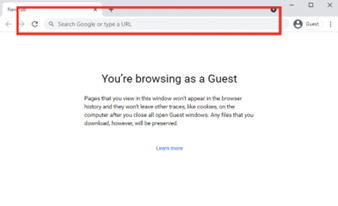
- Open your web browser (Google Chrome is recommended).
- In the URL bar (highlighted in red) type in 'hubcentral.communityhubs.org.au’.
-
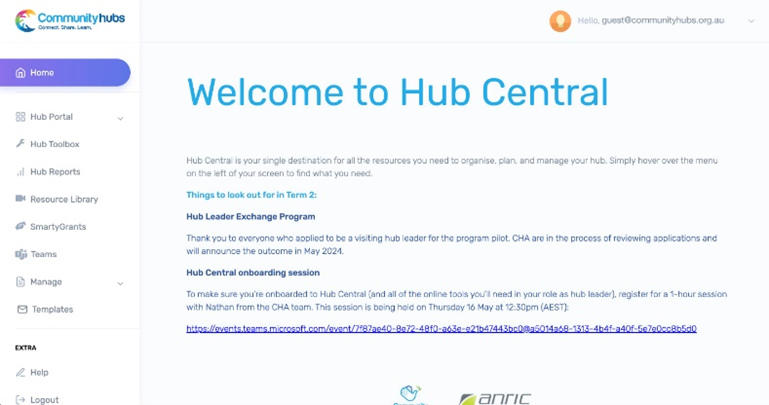
If you are taken to the Hub Central ‘Home’ screen – congratulations! You have opened Hub Central successfully. This is the end of the instructions.
If you do not arrive at the Hub Central home screen, please move on to Step 2.
Step 2
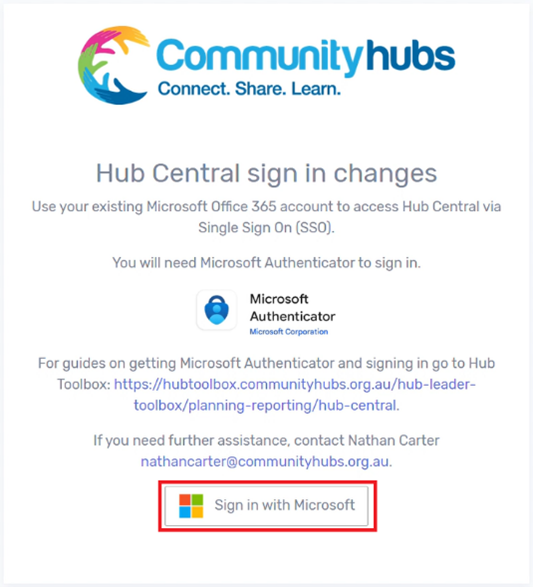
- You will need to use SSO to sign in to Hub Central.
- Get your Microsoft Authenticator app ready, then click on ‘Sign in with Microsoft’ to continue.
-
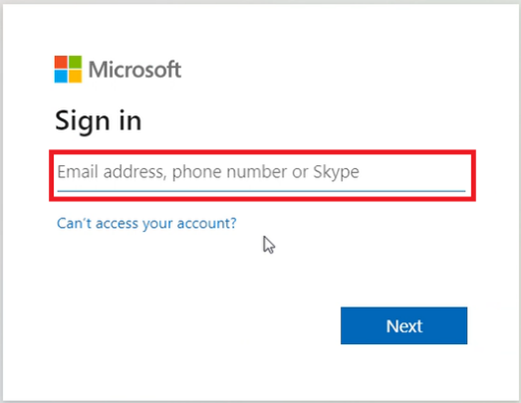
If prompted, enter your work or school email, then click on ‘next’ to continue.
Otherwise, skip to Step 3 below.
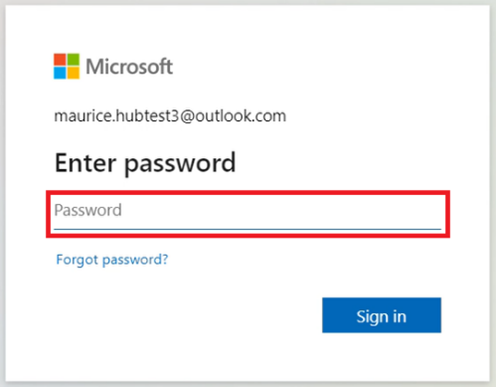
- Enter the password for the work or school email you entered earlier, then click on ‘Sign in”.
- If your work uses their own MFA, you may be prompted to use this here. If so, proceed as you normally would.
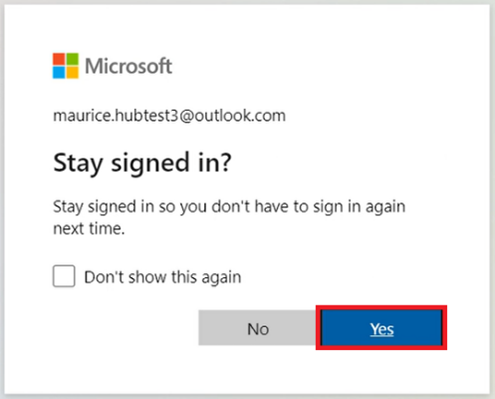
- If prompted to stay signed in, click on ‘yes’. This will reduce the number of times you need to log in going forward.
Step 3
-
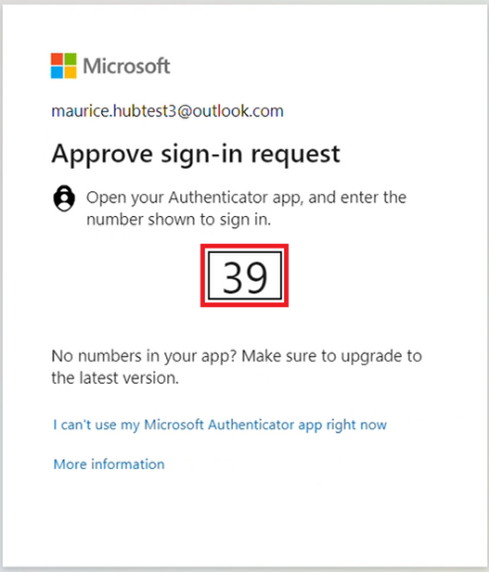
You may also be prompted to use MFA to access Hub Central – if so, note the number shown on screen, open the Microsoft Authenticator app on your phone, and enter the number as directed. Otherwise, skip this step.
If you are having trouble finding this app, please go to your app store (‘App Store’ for iPhones or ‘Play Store’ for Samsung/Android phones) and search for ‘Microsoft Authenticator’ with this icon:
- Welcome back to Hub Central! This marks the end of the normal sign in process.
Need help?
Contact Maurice in our team at mauricesyber@communityhubs.org.au